3DS Pro Media Suite
Notes from 15 October 2026.
Lately I've been 'tinkering' with the Nintendo 3DS, and three of the apps that came out of it grew into what I now call the 3DS Pro Media Suite: Pro Cam, a camera, Pro Rec, a sound recorder, and Pro Paint, a drawing app. All three are free and open source on GitHub.
The 3DS is a funny little machine to make these for. The cameras take 640 x 480 pictures, the mic hisses, and the touch screen only knows where you press, not how hard. So every one of these apps had to reach a bit deeper into the system than the 3DS normally lets you, and that's where all the interesting stuff happened.
A small heads up: this is quite a technical post. There will be sensor registers, system services and noise profiles. If that's not your thing, feel free to just look at the pictures, say hi to Cort further down, or skip right to the end where you can install the apps.
For each app I picked the most interesting thing about it, and the hardest problem I had to solve along the way.
Pro Cam
Pro Cam is a camera app with manual controls. You get auto, shutter priority and manual exposure, a histogram, focus peaking and so on, and it saves raw DNG files, JPGs, or both.
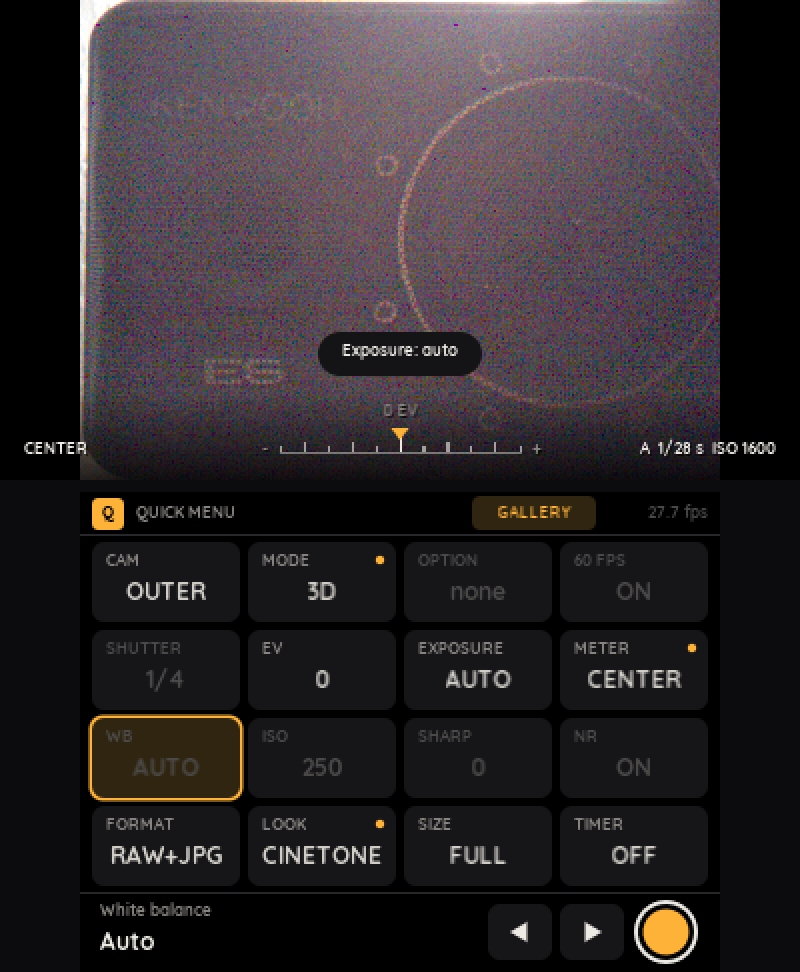
The viewfinder. Top: the live image with the exposure meter, shutter speed and ISO. Bottom: the quick menu, where you tap a setting to change it.
The Cool Part: Raw Photos
Normally an app asks the camera service for a picture and gets a finished image back. By then the sensor has already decided on the exposure, balanced the colours and processed everything, and there's no official way to get to the raw data underneath.
The camera module, the part of the system that runs the cameras, talks to the sensors over an I2C bus through a service called i2c::CAM. Apps aren't allowed to use it. But Luma3DS, the custom firmware most homebrew users have anyways, adds a few extra system calls, and with those Pro Cam finds the camera module and simply copies its session. (It only borrows it, the camera module keeps its own.)
From there Pro Cam can write the sensor's registers itself. It switches the output to the 10-bit Bayer data from before the sensor's own image processing, and sets the exposure time and gain by hand. The result is a real raw file, which you can develop in darktable or whatever raw editor you like.
Having the raw data also opened the door for Merge and HDR. Merge shoots up to 12 short frames from one or both outer cameras, lines them up tile by tile to make up for your shaky hands, and averages them into one cleaner photo. HDR makes use of the fact that the 3DS has two outer cameras for its 3D photos: one takes a long exposure and the other a short one at the same moment, and the two get merged, which should keep more detail in the bright parts. Should, because right now HDR sometimes still blows out the highlights and adds those pixel borders, but that's an issue for another day.
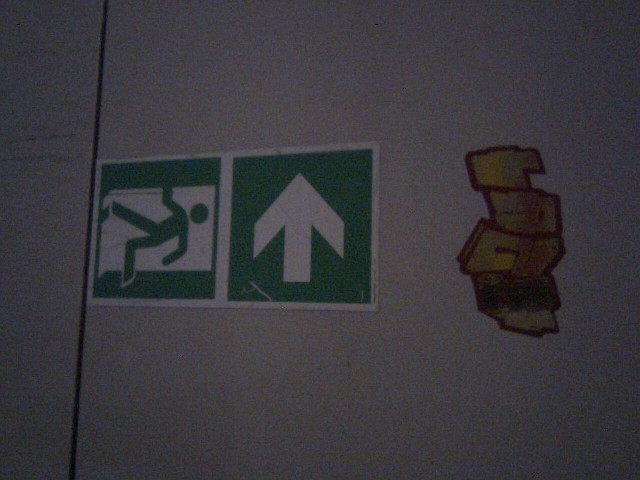
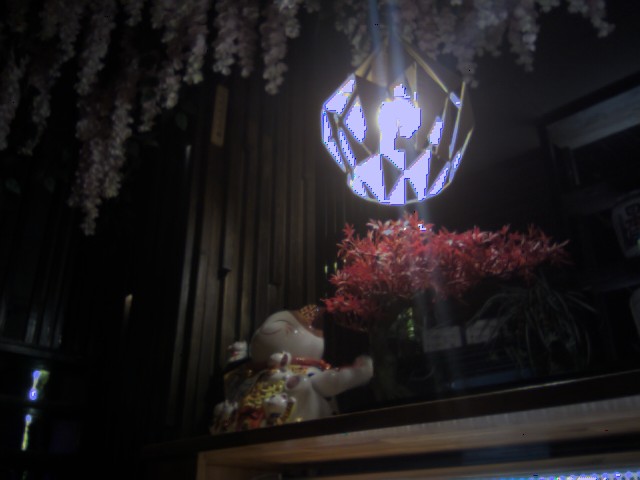
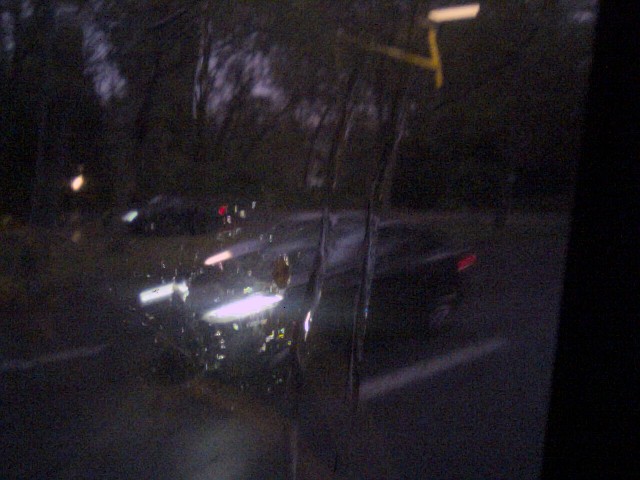
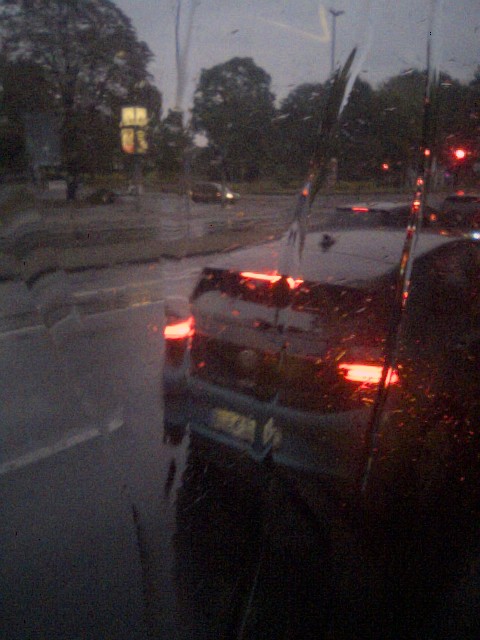
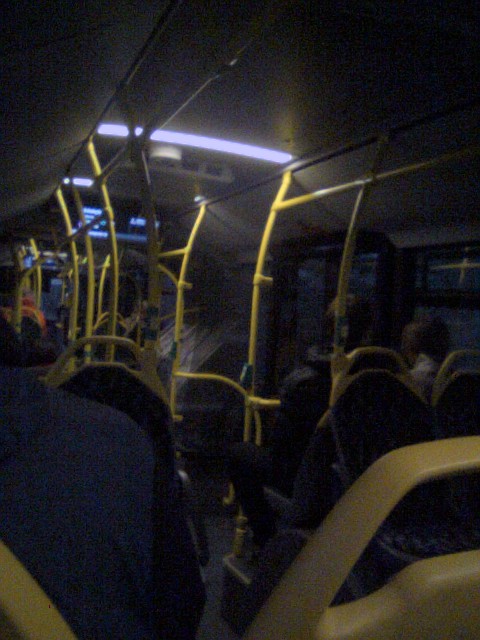
Taken with Pro Cam. An exit sign, a lamp, a street and a car in the rain, and a bus. Still 0.3 megapixels, but with a lot more say in how they turn out.
The Hard Part: A Camera That Kept Taking Over
The last time I checked before the release, auto exposure simply didn't work. And it took a while to figure out why.
The sensors have their own auto exposure and auto white balance built in. Pro Cam switches those off and runs its own exposure loop instead. The problem is that the camera module quietly switches them back on, after every camera switch and every stream restart, without telling anyone. So now you have two loops fighting over the same registers, and Pro Cam's loop loses.
The fix came in three parts. First, Pro Cam now tells the camera service that auto exposure and white balance are off, so the module stops turning them back on in the first place. Second, a guard keeps reading the sensors' exposure registers, and whenever a value isn't the one Pro Cam wrote, it switches the sensor's loop off again and puts the value back. And third, there's a sensor variable called AE_R9, which the sensor copies into the exposure time every single frame while its white balance runs. That one has to stay in step with Pro Cam's exposure time, otherwise it just overwrites it again.
Pro Rec
Pro Rec records sound. It keeps the raw recording and makes a cleaned up copy next to it, with presets for voice, meetings, music and nature.
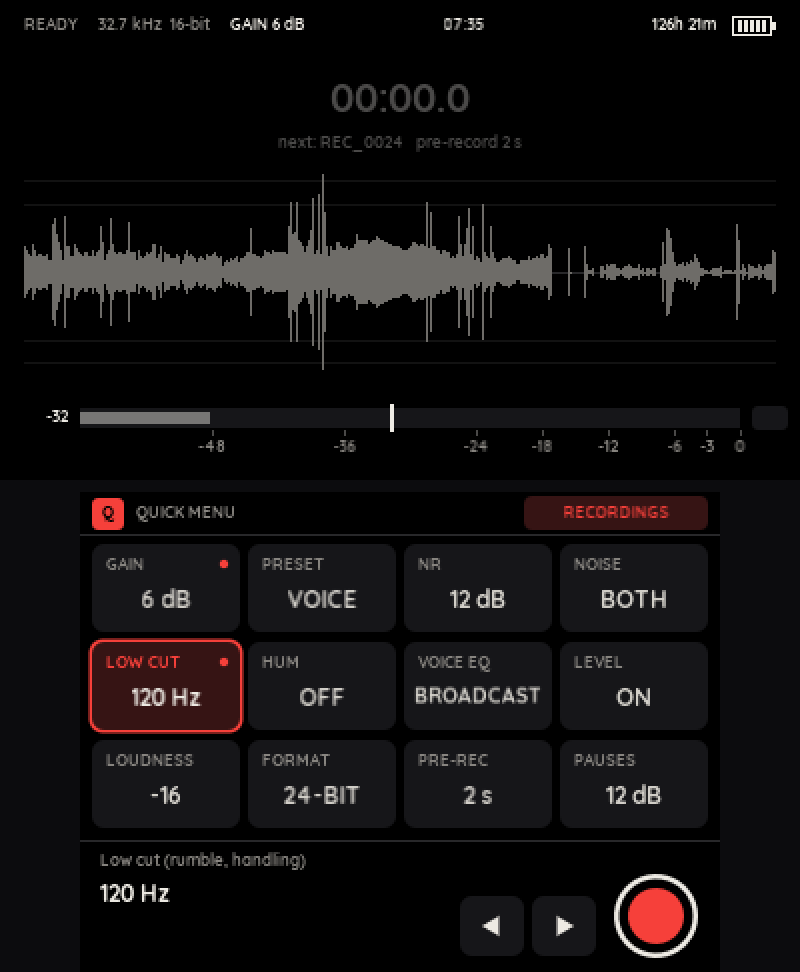
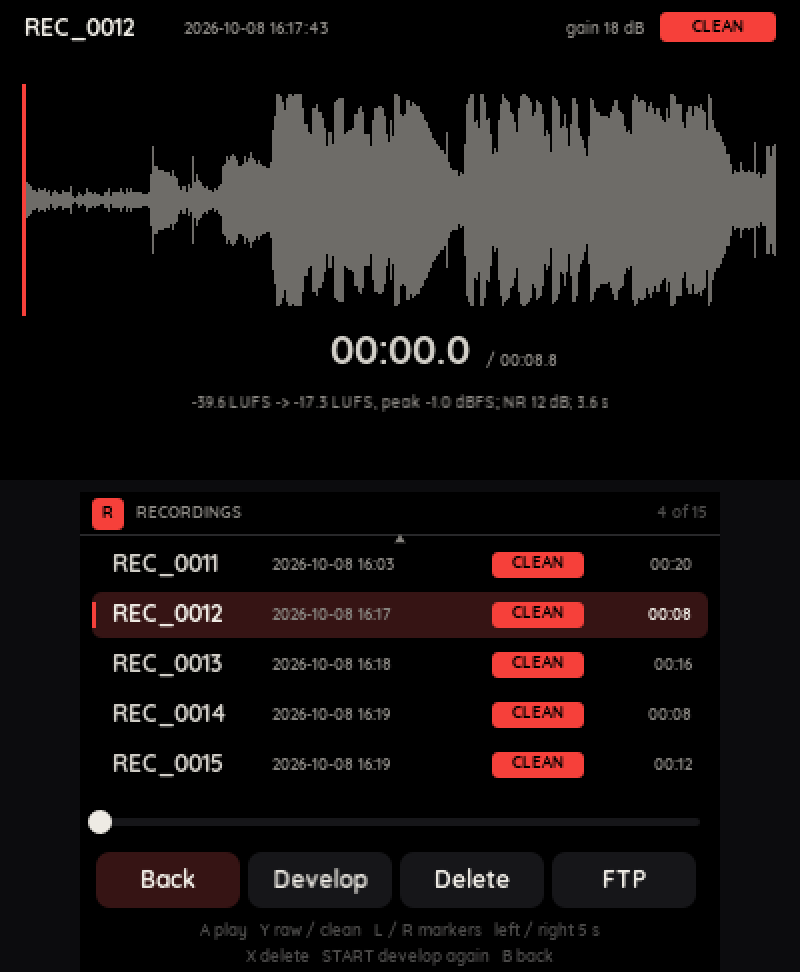
Pro Rec. Left: ready to record, with the live waveform, the level meter and the quick menu. Right: a recording and the list of takes. This one's clean copy went from -39.6 to -17.3 LUFS, so from barely there to properly loud.
The Cool Part: Developing a Recording
I like to think of it the same way as a raw photo. The 3DS mic hisses, and the console adds a little whine of its own. So instead of trying to fix that while recording, Pro Rec leaves the original alone and "develops" a clean copy afterwards.
Before you record, it can learn the noise. You stay quiet for four seconds and it measures how loud the noise is in each frequency band. Since the noise changes with the mic gain, it keeps one of these profiles per gain setting. And if there's no profile, it estimates the noise from the quiet moments of the recording itself, since speech only fills a frequency band part of the time.
The clean copy then goes through a whole chain: a low cut, notch filters for mains hum at 50 or 60 Hz, noise reduction, click removal, an EQ for clarity, a leveler, loudness normalisation and finally a peak limiter.
A small detail I really like is the click removal. Pressing a button on the 3DS makes a click the mic picks up really well. But Pro Rec knows exactly when you pressed something, because it logs every button press and screen tap during the recording, and it simply silences those moments in the clean copy.
The Hard Part: The HOME Button Froze Everything
Installed as a CIA, so as a proper app on the HOME Menu, Pro Rec froze the whole 3DS as soon as you pressed HOME. Rosalina, Luma's own menu, still opened, so the console wasn't completely dead, but the HOME Menu never showed up. Pro Cam and Pro Paint didn't have the problem at all, and since nothing actually crashed, there was no error message to go on either. My first guess was that I had pressed HOME while taking a screenshot. It wasn't that.
So I made a few diagnostic builds that write to the SD card what happens after you press HOME: the messages the system sends to the app, the audio chip being released, and a heartbeat from a background thread to see if the app was still alive. The logs said the app did everything right. It went to sleep properly and gave the audio chip back. It was the HOME Menu itself that never came up.
The cause turned out to be a single line at start up. Pro Rec can turn the screens dark during long recordings, and for that it opened a connection to a system service called gsp::Lcd, and then just kept it open. The HOME Menu needs that same service, so it sat there waiting for Pro Rec to let go, which a suspended app never does. The fix was to only open gsp::Lcd for the moment the screens switch, and close it right after. One line that freezes a whole console, a very 3DS kind of problem.
Pro Paint
Pro Paint is a drawing app. It has up to 12 layers with groups, clipping and blend modes, comes with Krita's brushes, can import more, and exports PNGs or layered OpenRaster files that other painting programs can open.
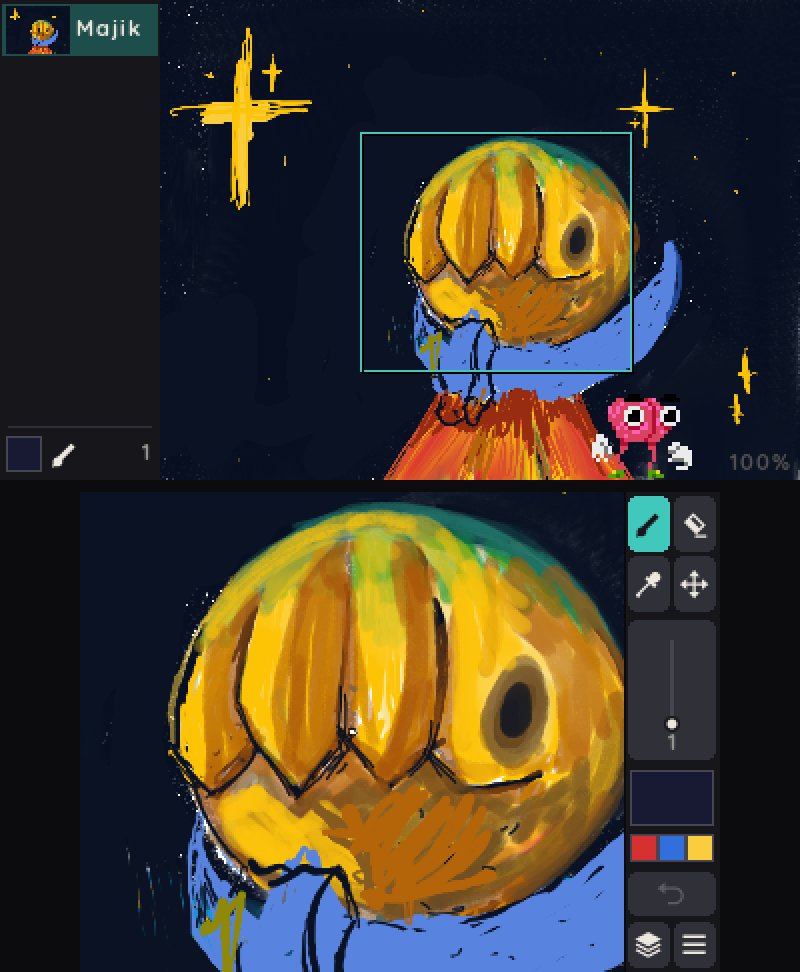
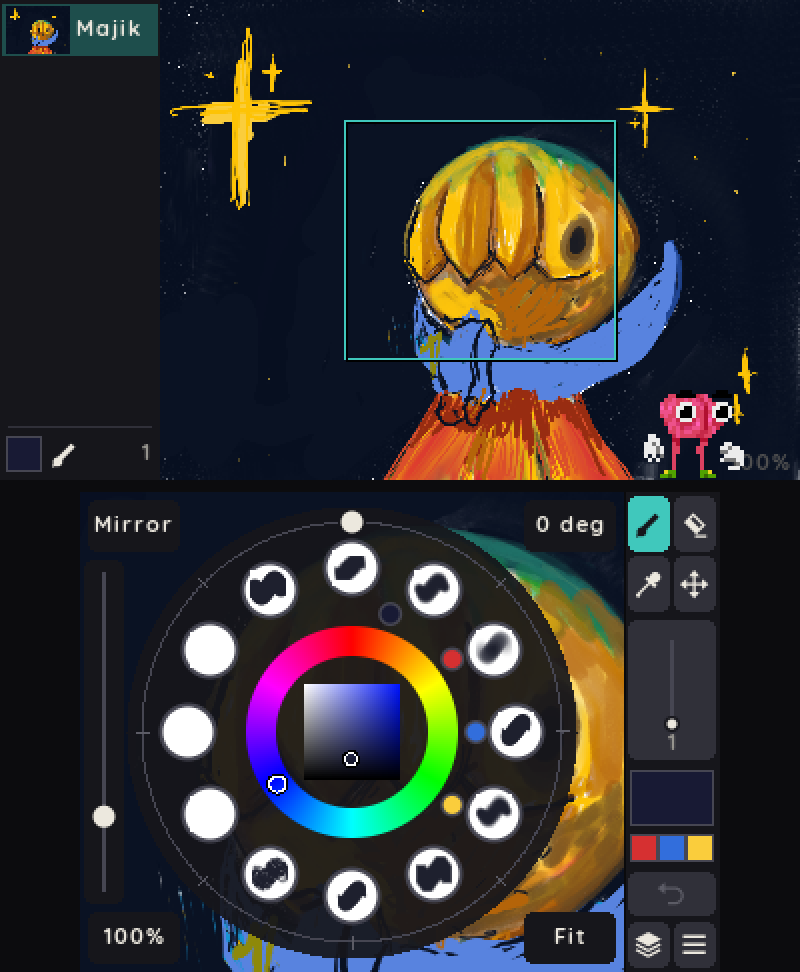
Painting in Pro Paint. Left: the top screen shows the whole page, the bottom screen the part you're drawing on. Right: the pop-up palette, with the favourite brushes around the colour wheel.
And before it gets technical again: look at Cort! Isn't he cute? :D



Cort. Waving hello, playing on his own little 3DS, and swooning over your drawing.
He's Pro Paint's mascot and lives on the top screen while you draw. He waves when the app starts, gives you a thumbs up when you save, cheers when you export, and shrugs when there's nothing left to undo. When you leave him alone, he strolls around and sometimes plays on his own little 3DS, and after 45 seconds without input he falls asleep. And every 40 strokes or so he swoons a little over your drawing. (If he distracts you, you can hide him in the menu, but why would you.)
The Cool Part: Shape Layers
The 3DS screens are tiny, so you zoom in a lot, and if you zoom in on a normal pixel layer, every edge turns into blocks. Shape layers don't.
Instead of only storing colours, a shape layer also stores a distance field: for every pixel, how far it is from the edge of the shape. When the screen is drawn, the renderer looks that distance up for each screen pixel and decides right there whether it's inside or outside the shape. So the edge gets drawn fresh at every zoom level and stays crisp, and one shape layer can still hold many colours.
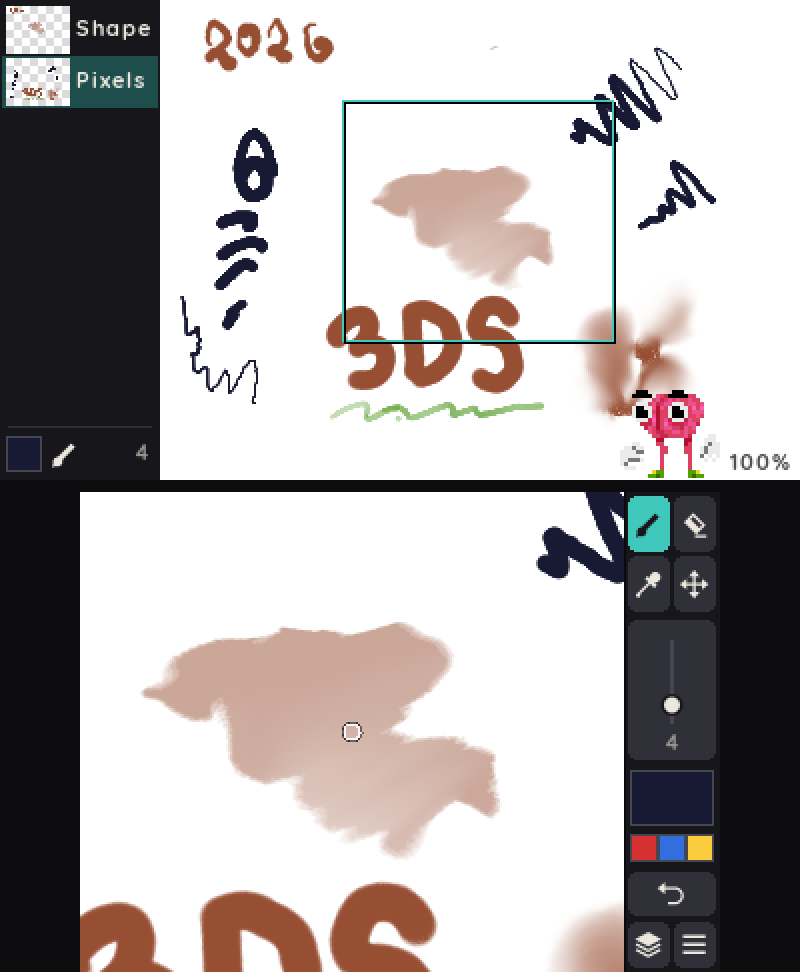
A shape layer, zoomed in. The edges stay smooth no matter how close you get.
The Hard Part: Pressure From a Screen That Has None
The 3DS touch screen is resistive, and officially it only reports where you press, never how hard. But the chip that reads the touch screen can actually measure pressure. It has two channels for it, called Z1 and Z2. The system just never asks for them.
Pro Paint's pressure comes from tpressure, a small library from the same suite that other homebrew apps can use too. It opens the chip's service, cdc:CHK, and if the system refuses, it borrows a session from a system process, the same Luma3DS trick as in Pro Cam. While the pen is down, it switches the chip to a scan mode that also measures Z1 and Z2. The catch is that those take the Circle Pad's place in the chip's report, so it switches back the moment the pen lifts. That means the Circle Pad works between strokes, but not during one. And if the old mode isn't restored on HOME, sleep and exit, the Circle Pad reads wrong afterwards, so that needs to be handled too.
Getting a usable pressure value out of the readings was the actual hard part. Z1 and Z2 give you the resistance of the touch, with a formula from the chip maker, and the harder you press, the lower it gets. A median over three samples removes spikes. Every 3DS and every stylus is a little different, so the range needs a one time calibration. The same press also reads differently depending on where on the screen you are. And finally a filter smooths everything out, slowly for light presses and quickly for hard ones.
In the end it's the noise that sets the limit, not the chip. The converter has 4096 steps, but only about 10 pressure levels are actually reliable. That's enough for a brush that gets thicker or darker the harder you press, just don't expect the fine control of a drawing tablet. (At least on a New 3DS. The Old 3DS turned out to be a different story.)
Update: The Old 3DS Can't Feel It
Notes from 25 October 2026.
When I first wrote this, I had only tried pressure on my New 3DS. So naturally the next thing I did was try it on my Old 3DS. The first version froze after a single stroke, and once that was fixed, light and hard strokes still looked exactly the same.
So I went digging again, with diagnostic builds that log every single report the touch chip sends. On the Old 3DS, the pressure scan mode never measures Z1 and Z2 at all. The chip just moves X and Y to where Z1 and Z2 should be, and every now and then the whole scan freezes. I tried 16 different scan modes (a few of them killed the touch screen until I rebooted), and the chip's own touch controller, the part the 3DS uses for DS games. My last idea was to measure the resistance of the press myself, through the chip's pen detection, which is basically a resistance check too. But nothing changed with how hard I pressed.
In the end the answer came from a full dump of the chip's registers on both consoles. The touch settings were the same on both, and the only difference was the chip revision: my Old 3DS has revision 0x11, my New 3DS 0x12. The touch screen itself is the same normal 4-wire panel, and it's wired up just fine. The older chip simply can't do the measurement. (There's one more route, switching the screen over to the DS touch hardware for every stroke, but that needs kernel access and can hang the whole console, so I'm leaving that one alone for now.)
So tpressure 1.0.1 now reads the chip revision when it starts, and only switches to the pressure scan on chips that have it. On the Old 3DS, Pro Paint tells you "This touch chip can't sense pressure" and you just draw without it. Not the ending I was hoping for, but at least now it knows why.
And while testing on both consoles, I found a much worse bug: Pro Paint 1.0.0 didn't start on a New 3DS at all. A memory setting I had added at the last minute for the Old 3DS split the memory in a way only the Old 3DS was fine with, and the New 3DS crashed right at start. That's fixed in Pro Paint 1.0.1 too, so if you installed 1.0.0 on a New 3DS, just scan the QR code below again.
Try It
If you have a 3DS with Luma3DS, you can try all three. Open FBI, go to Remote Install, then Scan QR Code, and scan the code of the app you want. After that it shows up on the HOME Menu like any other app.
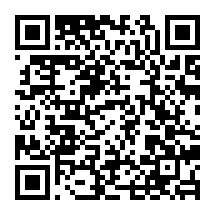
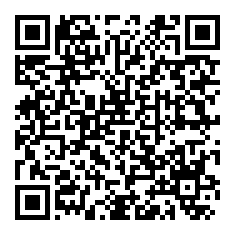
The source code, the .cia files and the .3dsx files for the Homebrew Launcher are all on GitHub: Pro Cam, Pro Rec and Pro Paint.
That's it for now. Have fun with them, and if something breaks, open an issue on GitHub and let me know!
This blog was written by me with the help of an AI service, and the HTML and CSS were entirely generated by an AI service.